Tuesday, 26 September 2023

Google Add-on: Bulk Rename Files update September 2023


What it does

Bulk rename Google Drive files quickly and easily with this Add-on. You define exactly what you want to search for in the file name and the text to replace it with. Along with options for handling special characters and append/prepend to the existing file name. Works across My/Shared drives.


Update

  • Bulk rename folders
    • A new tickbox feature has been added to now allow you to rename folders.


Find out more

Bulk Rename Files Add-on webpage - includes instructions and demo videos.


Tuesday, 12 September 2023

Autofill Google Sheet Formula each day

The following Google Apps Script is designed to check a Google Sheet once per day and if the date is in the past it Autofills another row with the existing formulas used across the columns. This post is a variation of the Autofill Google Sheet Formula one.

Autofill Google Sheet formulas each day

Tuesday, 15 August 2023

Sort through an array of duplicates with Sets

The following JavaScript code is a quick and easy alternative to sorting through an array of duplicates. It was highlighted to me by my colleague Tom Smith. As before it is designed to go through an array of values that contains duplicates and create a new array of only the unique ones, but not arranged alphabetically in this instance.

Sort an array with JavaScript Sets

Tuesday, 18 July 2023

Bulk create Drive folders with subfolders

The following Google Apps Script is designed to bulk create Google Drive folders with multiple subfolders. You control the naming convention of each folder and exactly how many you want.

Use this tool to bulk create folders with subfolders

Tuesday, 20 June 2023

Bulk duplicate Google Drive files

The following Google Apps Script tool is designed to take a single Google Drive file e.g. a Doc / Sheet / Slide and make duplicates/copies of it with unique file names. The tool will also create a clickable link within the Google Sheet to each new file copy.

Screenshot of the tool for duplicating Drive files

Tuesday, 6 June 2023

Auto close Google Form after X responses

As of January 2024 this tool is now available as a Google Workspace Marketplace Add-on.

The following Google Apps Script is designed to automatically close a Google Form once it has reached the number of responses you specify.


Download

Auto close Google Form after X responses download (please use 'Overview' > 'Make a copy' for your own version).

Tuesday, 23 May 2023

Create a Google Doc for a single row of Sheet data

The following Google Apps Script is designed to create a Google Doc for the selected row of data in a Google Sheet and to include some of that data within the new Doc. it also creates a link to the new Doc back in the Sheet on the relevant row.

This tool is a singular / simplified version of my Bulk create Google Docs from Google Sheet data one.

Screenshot of Sheet data to create a Doc for

Tuesday, 9 May 2023

Google Add-on: Bulk Rename Files update May 2023


What it does

Bulk rename Google Drive files quickly and easily with this Add-on. You define exactly what you want to search for in the file name and the text to replace it with. Along with options for handling special characters and append/prepend to the existing file name. Works across My/Shared drives.


Update

  • Sequential numbering
    • Append/prepend a sequential number to the existing file name that will automatically increment as it loops through the files.
    • In the search text enter '<<SEQUENCEXX>>' where 'XX' is the number sequence you wish to use (it can be more/less that 2 digits long). In the replacement text enter a combination of '<<SEQUENCE>>' and '<<KEEPNAME>>' depending on if you want to append/prepend.
    • Original file name example 1: 'My sample file'.
    • New file name example 1: 'My sample file 01'. So search text would be '<<SEQUENCE01>>' and replacement text '<<KEEPNAME>> <<SEQUENCE>>'.
    • Original file name example 2: 'Building code'.
    • New file name example 2: '005 Building code BC'. So search text would be '<<SEQUENCE005>>' and replacement text '<<SEQUENCE> <<KEEPNAME>> BC' .
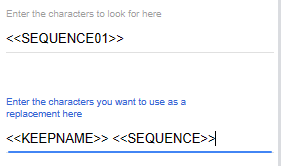
Add sequential numbers to existing file names